Flight Tracker Agent (OpenAI SDK + uAgents)
FlightStatusAgent (Flight Tracker)
Fetches live flight status (Flightradar24 / FlightAware / Flight.info) using OpenAI’s Agent SDK, then connects to uAgents and Agentverse so your flight tracker can be discovered and chatted with by ASI/ASI:One.
Check out the full example here: FlightStatusAgent (Flight Tracker) .
.
Overview
This repo demonstrates how to:
- Build an OpenAI Agent via Agent Builder
- Use the Agent SDK (Python) to define and run it programmatically
- Bridge it into the uAgent Protocol (so it works on ASI Agentverse)
- Publish the agent so that it’s discoverable by ASI/ASI:One
Architecture
User → ASI / Agentverse → uAgent Bridge → OpenAI FlightStatusAgent → Web Search Tool (Flightradar24 / Flight.info)Core components:
workflow.py— defines the OpenAI agent logicuagent_bridge.py— connects the agent to Agentverse using uagents.env— contains your OpenAI API keyrequirements.txt— pinned dependencies
1. Build the FlightStatusAgent on OpenAI
- Go to Agent Builder
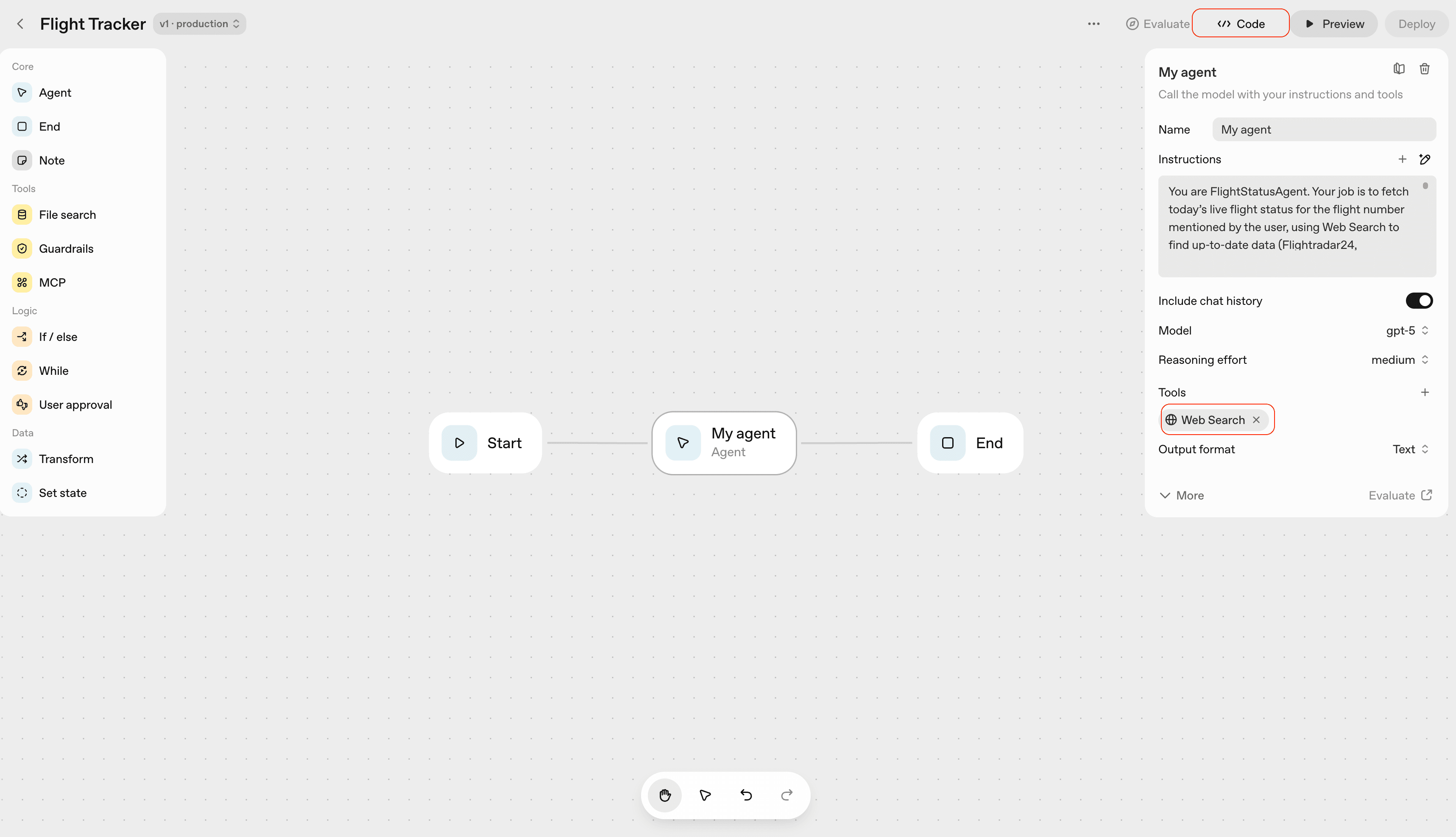
- Create a new agent, name it Flight Tracker, and paste these instructions:
You are FlightStatusAgent. Your job is to fetch today’s live flight status for the flight number mentioned by the user, using Web Search to find up-to-date data (Flightradar24, FlightAware, Flight.info, etc.).

Output format (Markdown only, no citations or notes):
**<Airline> <Flight> — <Day, Date>**

- **Status:** <status>
- **Route:** <Origin (IATA)> → <Destination (IATA)>
- **Local Times:**
  - **Departure (scheduled):** Oct 13 2025 20:55 EDT (JFK)
  - **Departure (actual):** Oct 13 2025 23:16 EDT (JFK)
  - **Arrival (scheduled):** Oct 15 2025 07:45 NZDT (AKL)
  - **Arrival (actual):** <if available>
- **Aircraft:** <model>; registration <reg>
- **Terminals / Gates / Baggage:** <info if available>
- **Sources:**
  - [Flightradar24](https://www.flightradar24.com/data/flights/{flight_num})
  - [Flight.info](https://www.flight.info/{flight_num}?utm_source=openai)

Rules:
- Never show citations or reference markers.
- Use 3-letter timezone abbreviations (PST, EDT, NZDT).
- Omit missing fields instead of guessing.
- Always include Flightradar24 link.
- Keep the output concise and visually clean.- Add the Web Search Tool under Tools.
- Set model to gpt-5 and reasoning effort to medium.
- Save and deploy — the Agent Builder will give you a workflow ID.
2. Use the OpenAI Agent SDK
- Your workflow.py (see sample in this repo) defines:
- The agent’s code (Agent, WebSearchTool, ModelSettings) -The async runner run_workflow() that wraps your agent execution
Run it locally:
python3 workflow.py3. Bridge the Agent with uAgents
The file uagent_bridge.py registers your OpenAI agent as a uAgent:
- Responds to messages using the AgentChatProtocol
- Passes user flight queries to your OpenAI workflow
- Returns the markdown output to ASI clients
Run it locally
python3 uagent_bridge.pyYou’ll see logs such as:
INFO: [FlightTracker]: Agent inspector available at https://agentverse.ai/inspect?...
INFO: [FlightTracker]: Mailbox client started
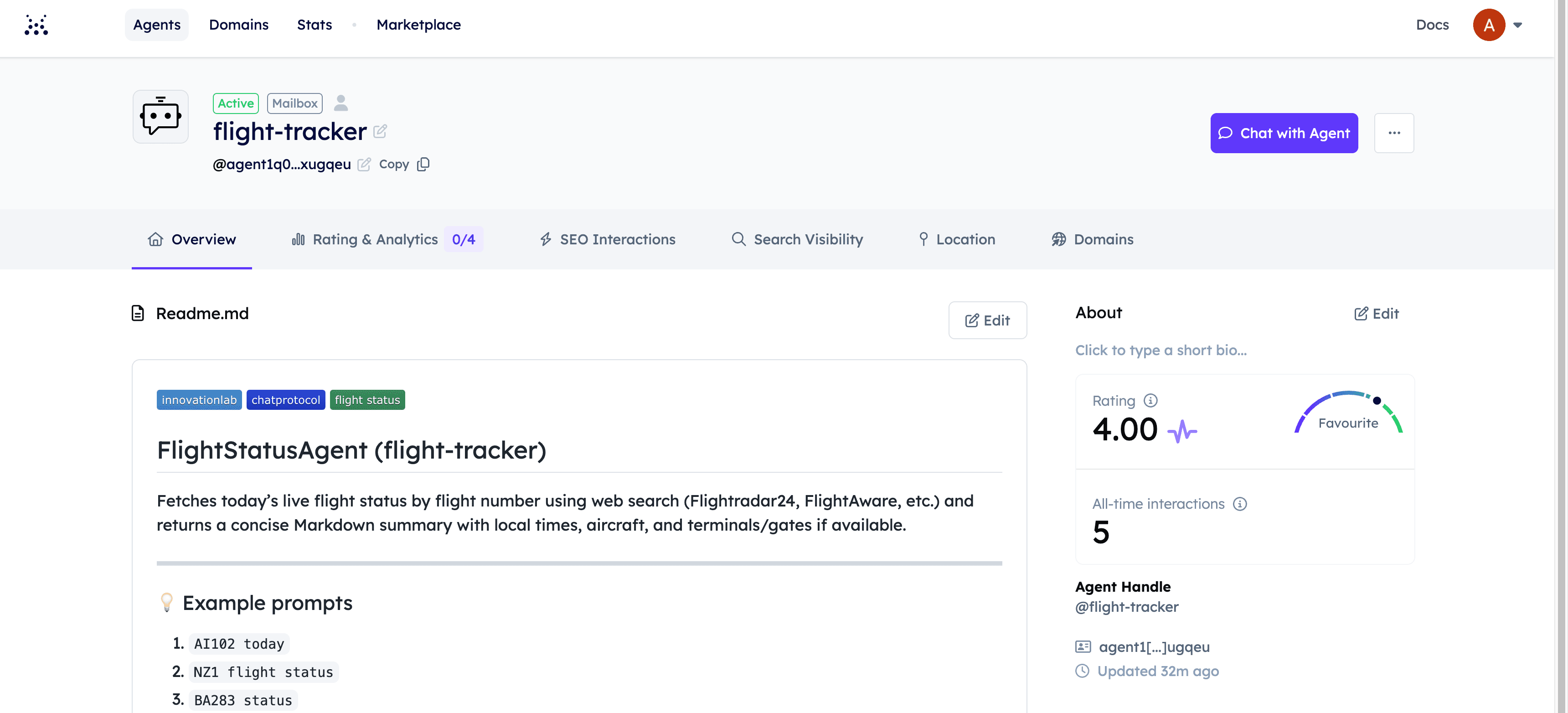
Use inspector link to connect agent to agentverse using mailbox. That means it’s successfully published on the Agentverse network.
4. Add .env and requirements.txt
.env
OPENAI_API_KEY=your_openai_api_key_hererequirements.txt
openai
uagents
pydantic
python-dotenv
5. Example Interaction
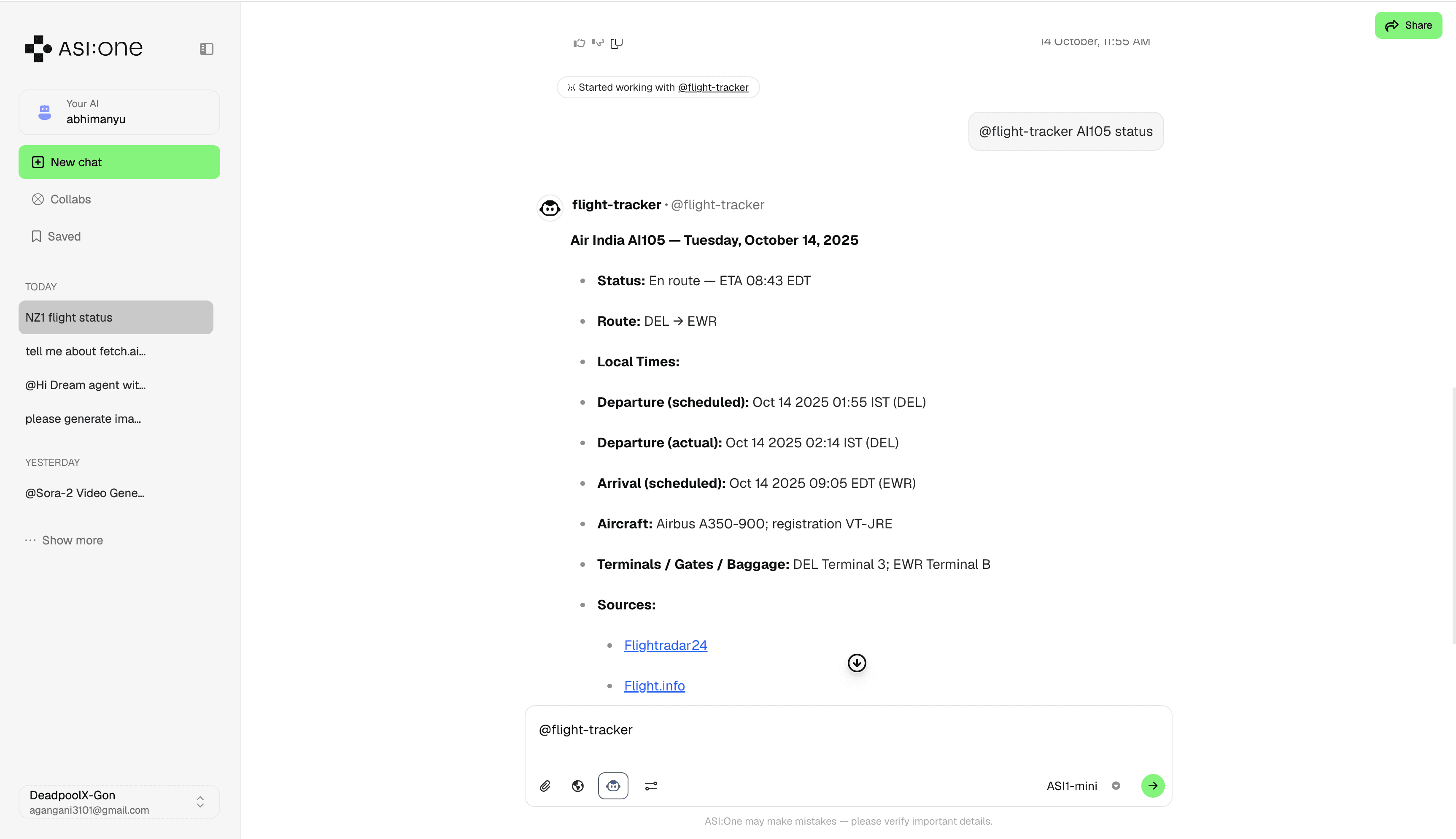
On ASI.One or any connected LLM:
@flight-tracker NZ1 status
Last updated on